Tmuxinator


You can install it through Ruby, Homebrew, or NixOS packages. The suggested method is via Ruby, so make sure Ruby is installed, and then run:
gem install tmuxinator
wget https://raw.githubusercontent.com/tmuxinator/tmuxinator/master/completion/tmuxinator.zsh -O ./.zfunc/_tmuxinator # for the completition
How it works
Tmuxinator allows the creation of sessions by a custom resource called Project.
You can create the project either local or globally:
tmuxinator new <project_name> # global project inside .config/tmuxinator/<name_project>.yaml
tmuxinator new --local <project_name> # local project inside ~/.tmuxinator/<name_project>.yml
By default the local project overrides the global one.
Example of My Project: golang.yaml
# /home/moviemaker/.config/tmuxinator/golang.yml

name: golang
root: ~/Repos/github.com/MovieMaker93/note-cli

startup_window: go
startup_pane: 1
# attach: false
windows:
  - go:
      layout: main-vertical
      # Synchronize all panes of this window, can be enabled before or after the pane commands run.
      # 'before' represents legacy functionality and will be deprecated in a future release, in favour of 'after'
      # synchronize: after
      panes:
        - fv
  - air:
      layout: main-vertical
      # Synchronize all panes of this window, can be enabled before or after the pane commands run.
      # 'before' represents legacy functionality and will be deprecated in a future release, in favour of 'after'
      # synchronize: after
      panes:
        - air
#- server: bundle exec rails s
# - logs: tail -f log/development.log
This is quite self-explanatory. Inside the YAML file, you can define:
- name: The name of the project
- root: The root directory of the session
- windows: Multiple windows with 5 different layouts, or can define your own
- panes: List of panes with command for each windows
For listing all the projects configured:
tmuxinator list
Handy Command with fzf
Here’s an additional command I set up inside .tmux.conf to list and select tmuxinator sessions using fzf:
bind-key -r i display-popup -E "\
    tmuxinator list |\
    tail -n +2 |\
	xargs -n1 |\
    fzf --reverse --header select-tmuxinator-session |\
    xargs tmuxinator start
    "
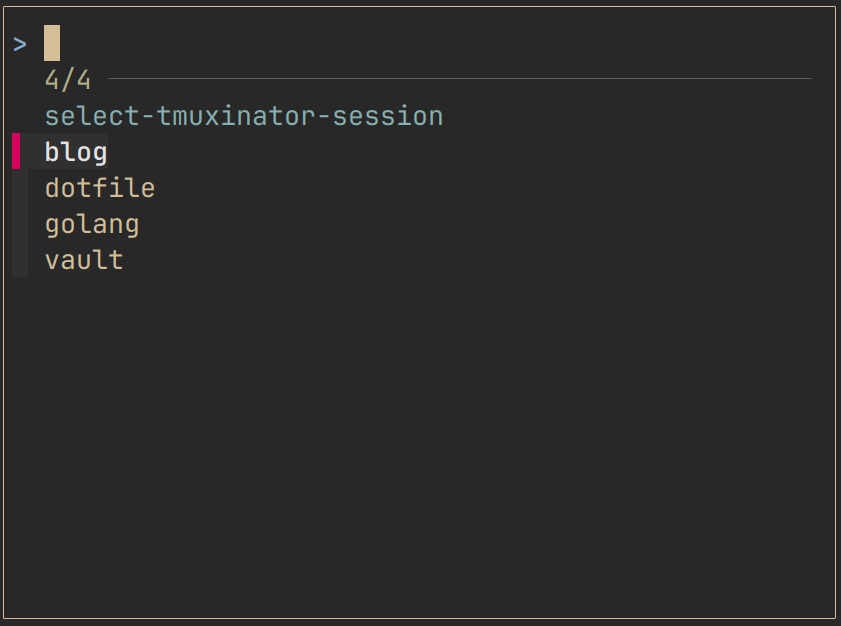
tmuxinator fzf
This lists all the projects using fzf, and you can select the one you want to start. You can check out all of these configurations in my dotfiles repository: MovieMaker93/devpod-dotfiles-chezmoi
Init tmuxinator on startup
I have also set up init sessions inside .zshrc
tmuxinator start golang # my current hobby project
tmuxinator start vault # obsidian vault
tmuxinator start blog # blog directory
tmuxinator start dotfile # dotfile directory
Wrap-up
Tmuxinator provides a flexible way to manage tmux sessions with customized workflows, making it ideal for automating your terminal setup. With easy project management and integration options like fzf, it’s a powerful tool for any developer’s productivity.

Hi, I’m a DevSecOps Engineer who thrives at the intersection of development, security, and operations. My journey started as a Full Stack Developer, but I quickly found my calling in the infrastructure side of things, transitioning to a DevOps/Cloud Engineer role within my first year. That shift opened the door to the world of CI/CD pipelines, Kubernetes, and cloud-native technologies, and I never looked back. Today, I focus on building secure, automated, and reproducible infrastructure. I’m a firm believer in Open Source and actively contribute to the community that shaped my career.
Never Stop Learning